1. Select +Modules, +Ecommerce:, Import Products from the Catalog section.
2. Browse for the import file on your computer by clicking Browse.
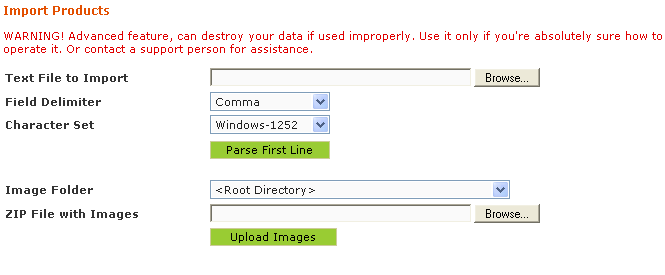
3. Leave the character set and delimiter and click  .
.
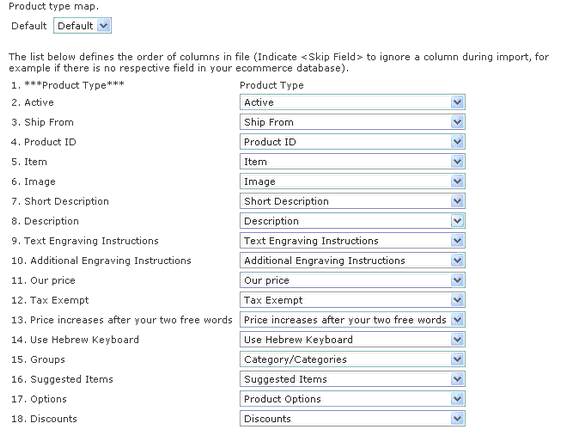
4. Scroll down to examine that all the fields in the drop downs on the right match the list on the left.
5. Select the appropriate function for the Import Mode. If you are adding products to your product list, then choose Add. If you are updating your existing product list, then select Update. If you are deleting the products from your product list that are in your import file, then select Delete.
6. If you are replacing your existing product list with the imported file then check the box for Delete All Products Before Import. If you are not replacing your product list, then simply leave the box unchecked.
7. If you are replacing your existing category list with the imported file then check the box for Delete All Categories Before Import. If you are not replacing your category list, then simply leave the box unchecked.
8. Leave Don't Import First Line of File checked. This function ignores the header information in your file and doesn't create a product with that information.
9. Select the Default Category from the drop down.

10. Click  .
.
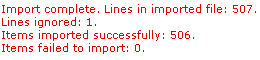
11. Once the import has been completed, the next screen will show how many lines were successfully imported, how many were ignored, and if any were not imported with an explanation as to why.