To insert a page anchor you need to insert HTML at the anchored text and then create a hyperlink with the anchor name.
To follow this tutorial you must be familiar with the Notepad.exe text editor and you must understand how to cut-and-paste text to and from your computer's clipboard.
Inserting Anchor References into your HTML
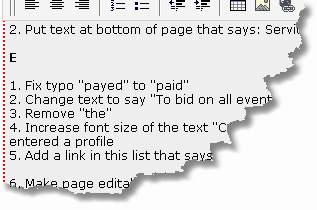
1. Determine where on your page you would like link to. In this example we will link to section E
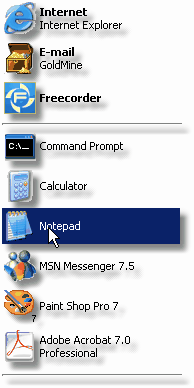
2. Open a text editor like "Notepad"
3. Enter the following text to create the anchor point HTML. "E" is the anchor name. This must be unique for EVERY anchor you create.
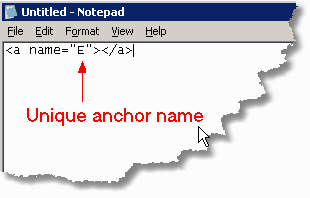
 You can use any one word text for the anchor name (name=) value.
Here are a few more examples:
< name="E"></a>
< name="Section_E"></a>
< name="AnythingYouWant"></a>
< name="123"></a>
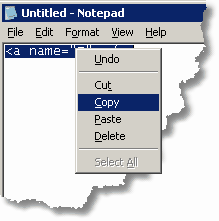
4. Highlight and COPY this HTML text. You can right-click your mouse and select Copy after selecting this text. This will store this text in your clipboard.
5. Place your cursor at the anchor destination and use the PASTE HTML tool to insert this HTML into your page. Make sure you paste this code right somewhere on the line you wish the user to be directed when the link is clicked. You won't see anything happen when you do this.
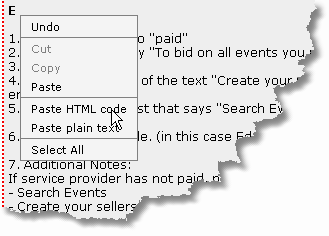
NOTE: You will not see anything once you paste this link. This embeds this code as "hidden HTML"
6. Repeat this for every anchor you need. Make sure you change the value of the name= parameter each time you do it.
Linking to Anchors
Now that you have created anchors throughout the page you can simply link any image or text to these anchors
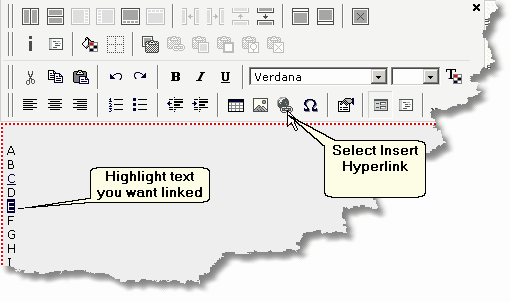
1. Highlight the text to be linked and select the  (insert hyperlink) button on the Rich-text editor
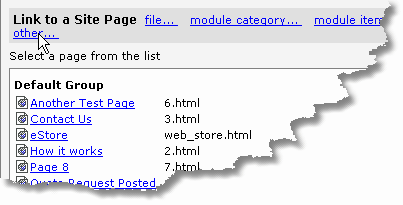
2. Select Other Link Type from the popup window
3. Enter the anchor name preceded with the # symbol. In this example the anchor name is "E" so you would enter #E in the link field.
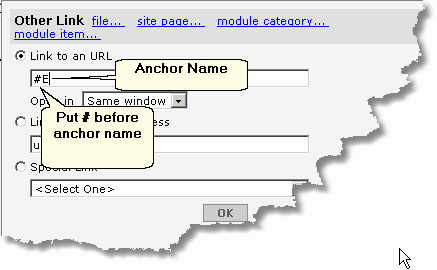 Do not include http:// in anchor links!
4. Save your page and preview page to test your link.