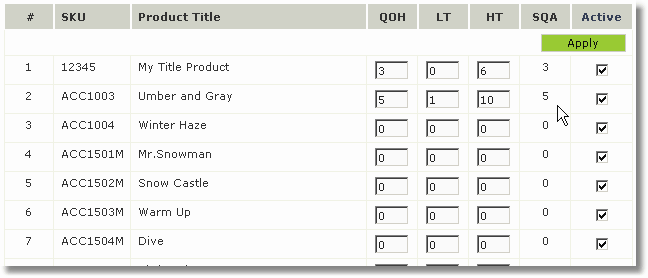
You may track your inventory quantities using the Inventory Control Function. You track your required minimum (LT) and maximum (HT) on hand quantities and can be notified via report when it's time to re-order. Additionally you can decide how the e-commerce responds when you are out of a particular item. You can sell the product anyways, show the product as sold out, or have make the product invisible when the quantity on hand is zero.
Turning on the Inventory Control Feature
1. Go to the e-commerce module using the left navigation.
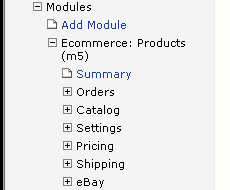
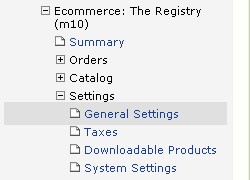
2. Click on the General Settings option under the Settings section of the menu
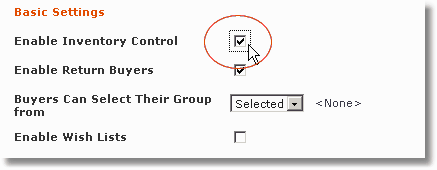
3. Find and enable the Enable Inventory Control checkbox in the Basic Settings portion of this page (towards the bottom)
4. Click  at the bottom of the page to save your change.
Inventory Control configuration options
The Inventory Control feature must be enabled before your configuration options will take effect
1. Click on the Inventory Control under the Catalog section of the menu to expose related settings.
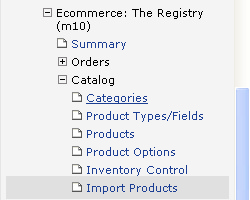
screenshot of inventory control screen
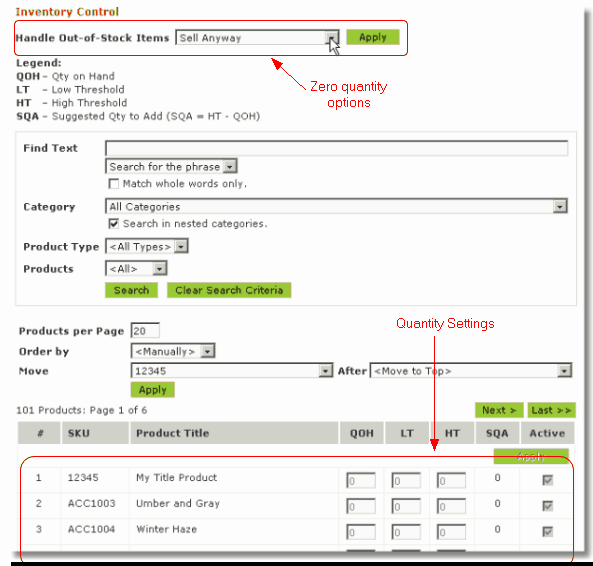
2. Select your zero "quantity on hand" (QOH) handling options.
You can:
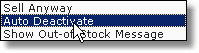
Sell the product anyways - Ignore the fact you have none in stock ("quantity on hand" (QOH) is zero)
Auto Deactivate - The product will no longer be visible on your site until you increase your "quantity on hand" (QOH)
Show out-of-stock message - Your product will be unavailable for purchase and will display an out-of-stock message
Updating your QOH, LT, HT, and SQA values
You will need to choose the LT (low threshold) and HT (high threshold) for each product so that you know when to re-order and how many to reorder. Your QOH is the "quantity on hand" or the amount you have in stock currently.
Simply update the fields with the proper values for your LT and HT. The LT should be the least amount of that item you wish to have in stock before you re-order. HT is the highest amount of that item you wish to stock.
QOH is the current quantity on hand. This must be entered and updated as you add or remove inventory.
As your customers purchase your products online the QOH will automatically deduct. Once your QOH for a particular item reaches the LT value, you will be notified via e-mail.
You may use the SQA column to determine how many of any item you should order. The SQA is the suggested quantity to add (HT - QOH). SQA automatically updates based on QOH, LT and HT