IMPORTANT: You must understand how to add and edit Products to follow this section
You may allow your customers to choose options before adding an item to their shopping cart.
Options may include:
| • | Sizes |
| • | Colors |
| • | Book Covers |
| • | Add-on products |
| • | Custom text |
| • | More.. |
Option Example: Book Cover Option
1. EDIT the product and locate the Product Options area.
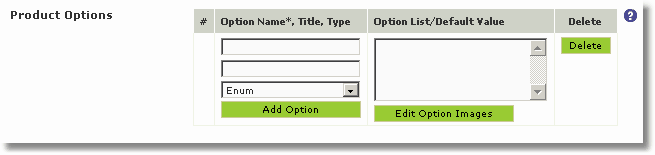
2. Enter the Option Name, Option Title and select the Option Type. In this case the type is "enumerated". Enumerated means a list of options.
3. In the Options List enter each option on one line. You may also increase or decrease the price of the item by entering a value preceded by an equal sign and a + or - symbol. In this example the Hard Cover option is $4.99 more than the Soft Cover option.
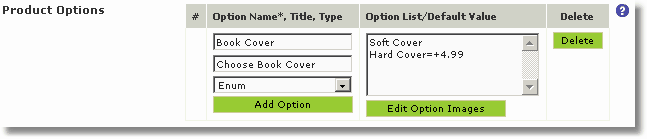
4. Click the  button to save this option. You can repeat for as many options as you wish.
5. Click  to save your item. Preview your site to test it out.
Here is how it should look
View of product
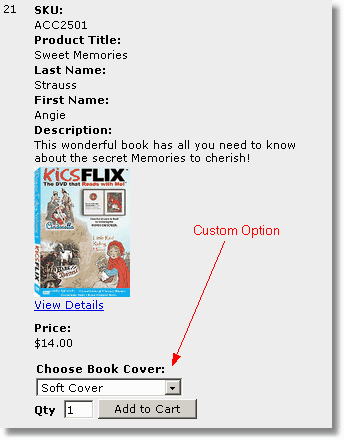
Default Value
The default value is the first line in the Option List. The use of brackets [] around the default value or any option in the list will disallow the user to add the product to the shopping cart if selected. Read Forcing a customer to choose an option below to learn how to use this feature.
Custom Option Price
Coming now
Forcing the customer to choose an option
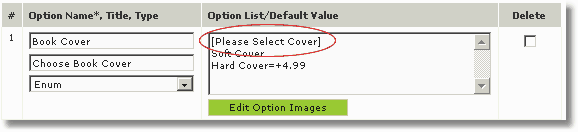
If you would like to force your customer to choose one of two options you must insert text in brackets [ ] on the first line of the Option List. Look at this example. The user is forced to select either Soft Cover or Hard Cover to purchase this item.
Conditional Option Trees
As mentioned in the example above. You can associate an increase or decrease in price depending on the option selected by your customer. After your option add an equal sign (=) then a plus (+) or minus (-) and finally the value you would like to add or subtract from the base price.
To add 4.99 to a hard cover:
Hard Cover=+4.99
To subtract $.99 for local delivery:
Local Delivery=-.99
Custom Text Option
Coming soon
Custom Price Option
Coming soon
Custom File Option
Coming soon