Links are used to connect site pages together. Links are also called hyperlinks There are different types of links you can use:
| • | Link to a site page |
| • | Link to a page on a different web site |
| • | Email link (mailto:) |
| • | E-commerce category link |
| • | E-commerce item link |
| • | Other special link types (defined later) |
To create a link
1. First you must highlight the text or image you wish to link with your mouse.

Next you must select the  icon to open the link selection window. There are several categories listed. Site Page, File, Module Category, Module Item, and Other. Site Page is the default view.
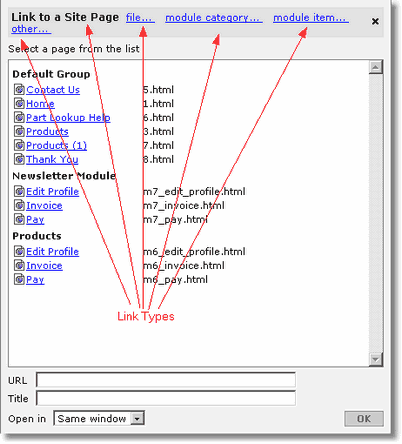
Linking to a Site Page
2. Since Site Page is the default Link Type, you should see a list of pages just like the image above. If not, click on Site page. Then click on the Site Page you wish to link. The Site Page name will display in the URL field at the bottom.
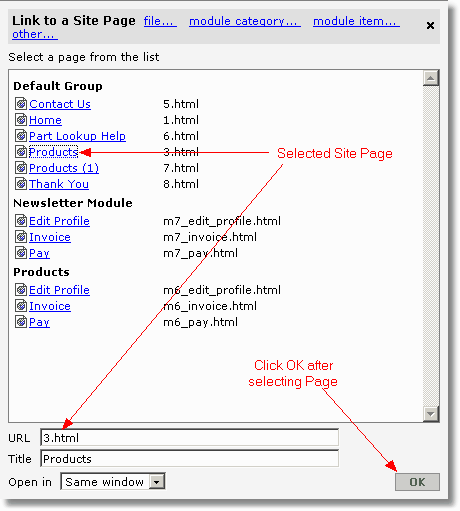
3. Click  after selecting your page. The text now should appear as a link.
4. Don't forget to press  at the bottom of the page to save your changes.
Linking to a page on a different (external) web site
2. In this example if you would like to link to www.websiteforge.com you would select link type other.. and enter the URL in the Link to an URL text box.
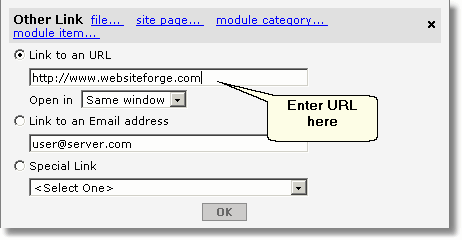
3. Click after selecting your page. The text now should appear as a link
4. Don't forget to press at the bottom of the page to save your changes.
Creating an e-mail link (mailto: link)
2. In this example if you would like create an e-mail link to features@websiteforge.com you would select link type other.. and enter the e-mail address in the Link to an E-mail address.
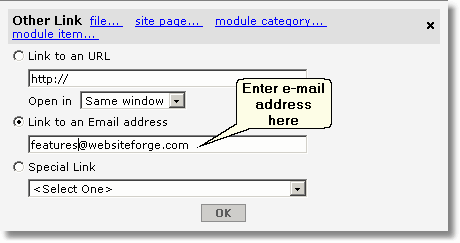
3. Click after selecting your page. The text now should appear as a link
4. Don't forget to press at the bottom of the page to save your changes.
Linking directly to an E-commerce category
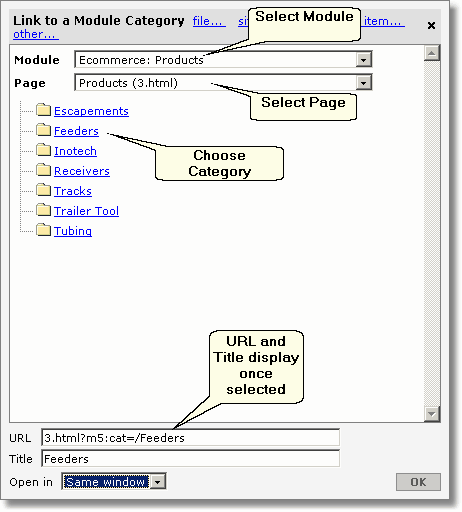
2. Select link type Module Category...
3. Select which E-commerce Module
4. Select which Page (page must contain e-commerce frames)
5. Click on the Category you would like to link to. The link URL and Title will display at the bottom
6. Click after selecting your page. The text now should appear as a link
7. Don't forget to press at the bottom of the page to save your changes.
Linking directly to an E-commerce item
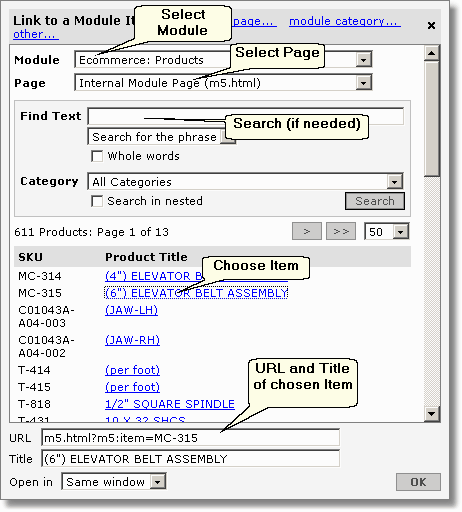
2. Select link type Module Item...
3. Select which E-commerce Module
4. Select which Page (that contains e-commerce)
5. Search for and click on the Item you would like to link to. The link URL and Title will display at the bottom
6. Click after selecting your page. The text now should appear as a link
7. Don't forget to press at the bottom of the page to save your changes.