What is a Popup Site Page?
A popup page is a general term. Usually it's a page that opens a new browser window with some specific information. Usually these windows are smaller and float over the page you are currently viewing. Popup pages are best known for presenting special offers or important information to your visitor.
Popup page example
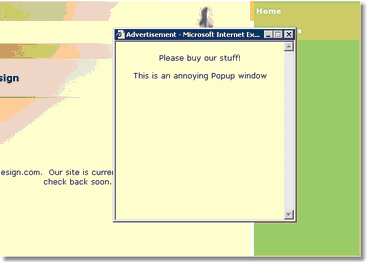
Popup pages have a reputation for annoying visitors to your site. We strongly suggest you refrain from the use of popup pages. Furthermore popup pages are aggressively blocked by many browsers including Internet Explorer, AOL, Firefox and many others.
NOTE: Many browsers automatically block popups
How do you create a popup page?
You create a popup page just like any other page. Click here to learn how to create a Site Page.
Once the popup page is created it is generally linked to a trigger of some sort. You can trigger the popup page when a visitor enters or exits a normal site page. You may also link the popup page to any Site Menu item or Hyper Link in the Rich Text editor.
You may have a popup page on the Entry AND Exit of any one site page.
Popup Page Triggers - Popup on Page Entry
Note: To follow this step you must first create your popup page using the directions above
To trigger a popup page on the enter or exit of another Site page do the following:
1. Select the "Trigger Page" in your left navigation menu. (in this example the Home Page)
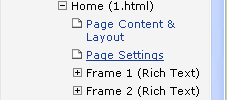
2. Choose Page Settings from the list in under Home
Locate the Entry Popup Page section
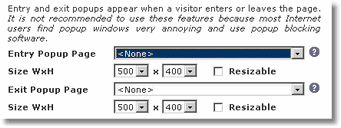
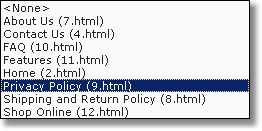
3. Locate the Entry Popup Page drop box and select the page you wish to have Popup. (We chose the Privacy Policy page in this example)
4. Choose a Width and Height of the popup page. Default is 500 x 400. Choose Resizable if you want to enable a visitor to resize this window.

5. Click  to save your changes and
  to test it.
Popup Page Triggers - Popup on Page Exit
Note: To follow this step you must first create your popup page using the directions above
To trigger a popup page on the enter or exit of another Site page do the following:
Follow steps 1 and 2 above under "Popup Page Triggers - Popup on Page Entry"
3. Locate the Exit Popup Page drop box and select the page you wish to have Popup. (We chose the Privacy Policy page in this example)
4. Choose a Width and Height of the popup page. Default is 500 x 400. Choose Resizable if you want to enable a visitor to resize this window.
5. Click to save your changes and to test it.
Popup Page Triggers - Popup on Site Exit
This feature will force a popup when your visitor exits your web site
1. Go to the Site Template and Settings page using the left navigation
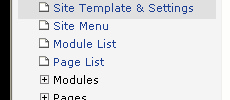
2. Locate the Browser Close Popup drop box and choose your popup page. (We chose the Privacy Policy page in this example)

Choose your popup page
3. Click to save your changes and to test it.
Contact support with questions