Apply Photo Gallery to a site page
If you did not already create a page to put your gallery click here to learn how to add site pages to your web site
1. Select the page from the left navigation if it has already been created.
2. If you want to create a page that displays rows of thumbnails that appear as large images on the same page then you'll need two frames to work in to display a larger image on top and the thumbnails on the bottom or the other way around. So please add the necessary frames if they are not already there.
3. Click inside the frame that will hold the large view of the images. Select the lower case "i" from the toolbar to insert a modular piece.

4. Select Advanced Gallery: Portfolio for the module, and Image List for the Frame Type.
5. On the Frame Type/Info page you will set up how you want the page to display your images for that frame. For the large image view, you'll select from the Images Listed drop down Affected by Current Image.
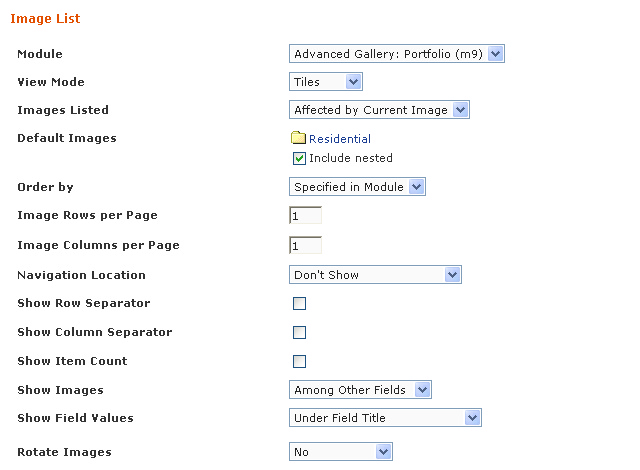
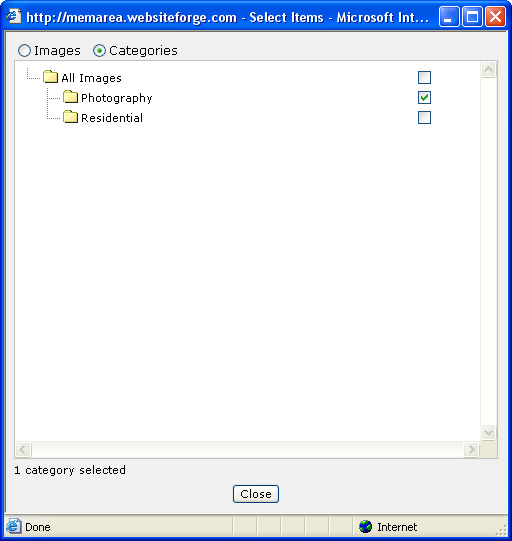
6. For Default Images, select the folder for All Images and select the correct category for that page. Be sure to uncheck any unwanted categories such as All Images.
7. Change the Rows and Columns to 1 for the large image view. Select Don't Show for the navigation location, and uncheck the next three checkboxes.
8. Make sure the next two drop downs show the Among Other Fields option.
9. Change the Upon "Link to Details" Click drop down to Stay on Page.

10. The bottom portion of the page will allow you to "Include" certain items or "exclude" them as you wish. For a large image view you'll only need to include the Image Field. To do this, uncheck all the check boxes in the third column except for Image. Change the drop down for the image field from Thumbnail to Full-Sized.
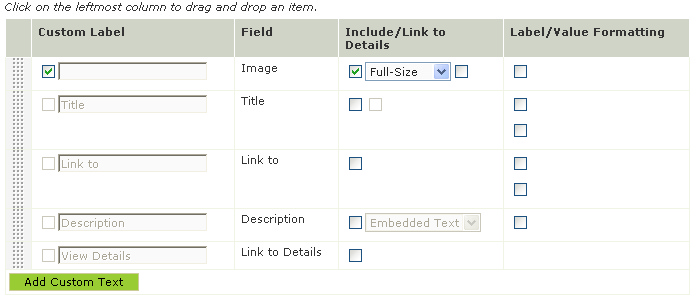
11. In that same row, check the box in the first column so the grayed out Image name is activated. Click inside that text box and delete the word Image. This will take the label off the page so it appears as if only the image is there instead of a labeled image.
12. Click Save at the bottom of the page. This will take you back to the Page Content & Layout screen.
