NOTE: It will save you a lot of time to first add all your categories before adding products. Click here to learn about adding categories
1. Go to the e-commerce module using the left navigation under Modules
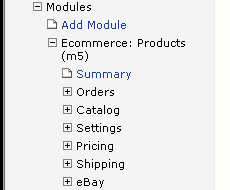
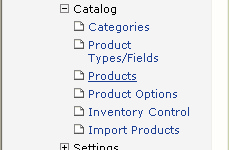
2. Click on the Products link under the Catalog section of the menu
3. Click the  button. You will see the Add Product screen.
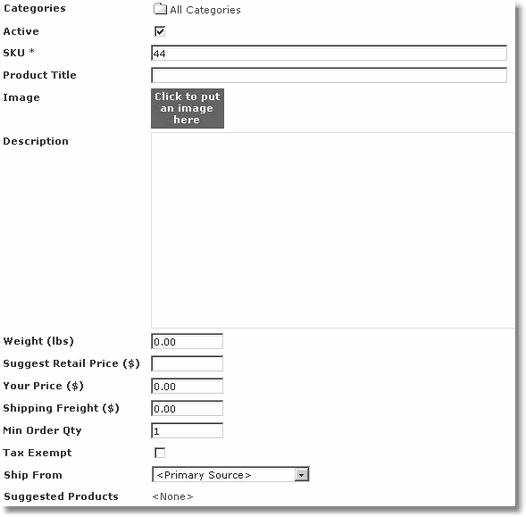
4. Click on the  Categories icon to select which categories your product should belong to. This is an important step if you have more than a few products. Click here to learn how to add Categories. NOTE: It will save a lot of time to add your categories before adding your products.
5. Click on all the categories your product belongs to. In this case I selected "All Categories" and "Automotive"
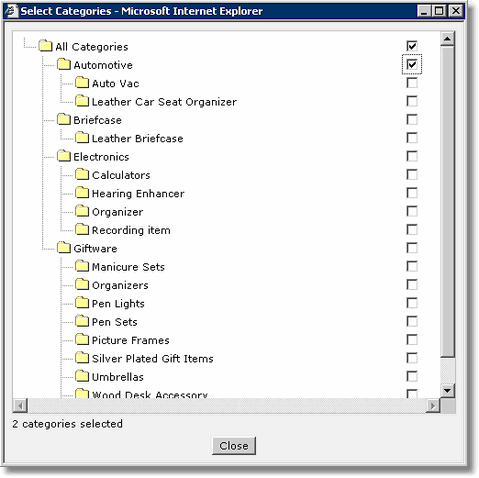
6. Click the  button to confirm your category selection.
7. Fill in your SKU and Product Title. NOTE: SKU is a required field. Every product must be identified uniquely with a code. If you do not have a SKU, make up any unique code you wish.
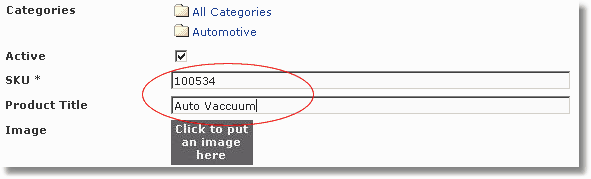
8. Click on the  icon to choose your product image. Note: Your thumbnail image will be automatically created so you only have to upload ONE image per item unless you wish to add more images.
CLICK HERE to learn about uploading images
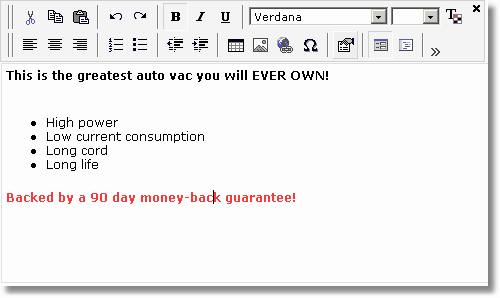
9. Enter a detailed description of this product in the Description field. This text can be formatted using the Rich Text features of the editor.
10. Enter the weight in POUNDS. IF YOU DO NOT enter the weight, your shipping calculations will not work properly. Note: If your product weight is in ounces or any other metric, you must convert the value to pounds. For instances 24 oz must be converted to 1.5 lbs.

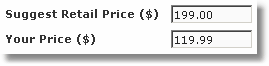
11. Next enter the Suggested Retail Price and Your Price. If you wish to remove or rename or remove the Suggested Retail Price you can do so in the Product Type/Fields area. The actual sales price calculation in the shopping cart will come from the Your Price field. The Suggest Retail Price field is only there to show your customer their savings.
12. Check the Tax Exempt field ONLY if your product is non-taxable
13. Enter a value in the Shipping Freight field ONLY under the following circumstances:
A: You are NOT using auto shipping calculations and know exactly how much this product costs to ship. It will be the same in all instances.
B: You ARE using auto shipping calculations and wish to add an additional amount or surcharge to the cost of shipping
C: You have setup advanced shipping options and this was required to do so
14. Press the  button to save your product. Optionally you can click the
  button to immediately enter another product.
NOTE: The above fields are the considered the minimum fields required to add your Product. However, depending on your type of product and whether or not you use inventory control you may use the other fields like Min Order Qty, Ship From, Suggested Products, Product Options, Product Level Discounts, and more.